
How to Set Up Your Dedicated Sending Domain in your Digital Business Suite (Using SiteGround)
Before you start marketing or nurturing leads, there’s one super important step: setting up your dedicated sending domain. Why? Because it helps your emails land in inboxes—not spam folders.
This blog will walk you through setting up your dedicated sending domain using SiteGround. Sounds scary? Don't worry, we've got you. If you do require any additional support don't forget about our 1:1 onboarding option (Click here to go through the full onboarding) as well as Chat Support.
Why You Need a Dedicated Sending Domain
Think of your domain as your business’s email reputation. If you’re using a shared one (like Mailgun’s default), you’re relying on their sender score. A dedicated domain tells Gmail, Yahoo, and others, “This sender is legit."
As of February 2024, Gmail and Yahoo are enforcing stricter email rules:
You must send from a verified domain
Add proper DNS records (SPF, DKIM, DMARC)
Include a 1-click unsubscribe in your emails
Keep spam complaints under 0.1%
Step-by-Step Setup (for SiteGround users)
Step 1: Add Your Domain in the Digital Business Suite
Log into your Digital Business Suite account.
Go to:Settings > Email Services > Dedicated Domain


You can Click this Button Or
Click the
+ Add Domainbutton.
Select your Smtp provider
The next screen that you're taken to will ask you to add DNS records to your Domain. Leave this screen open for the next step.


Step 2: Add DNS Records in SiteGround
Now, leave that screen open. You’ll need it in the next steps.
Log into your SiteGround account.
Go to:
Site Tools>Domain>DNS Zone EditorYou’ll be adding 5 records in total.

DNS RECORD 1: TXT (SPF Record)
DNS RECORD 1: TXT (SPF Record)
Go to your domain’s DNS settings.
Click the TXT tab or “Add Record.”
Fill in the fields:
Name (Host):
Use your subdomain (example:repliesforreplies.yourcompany.com).If you're using a main domain, leave it blank or use
@.
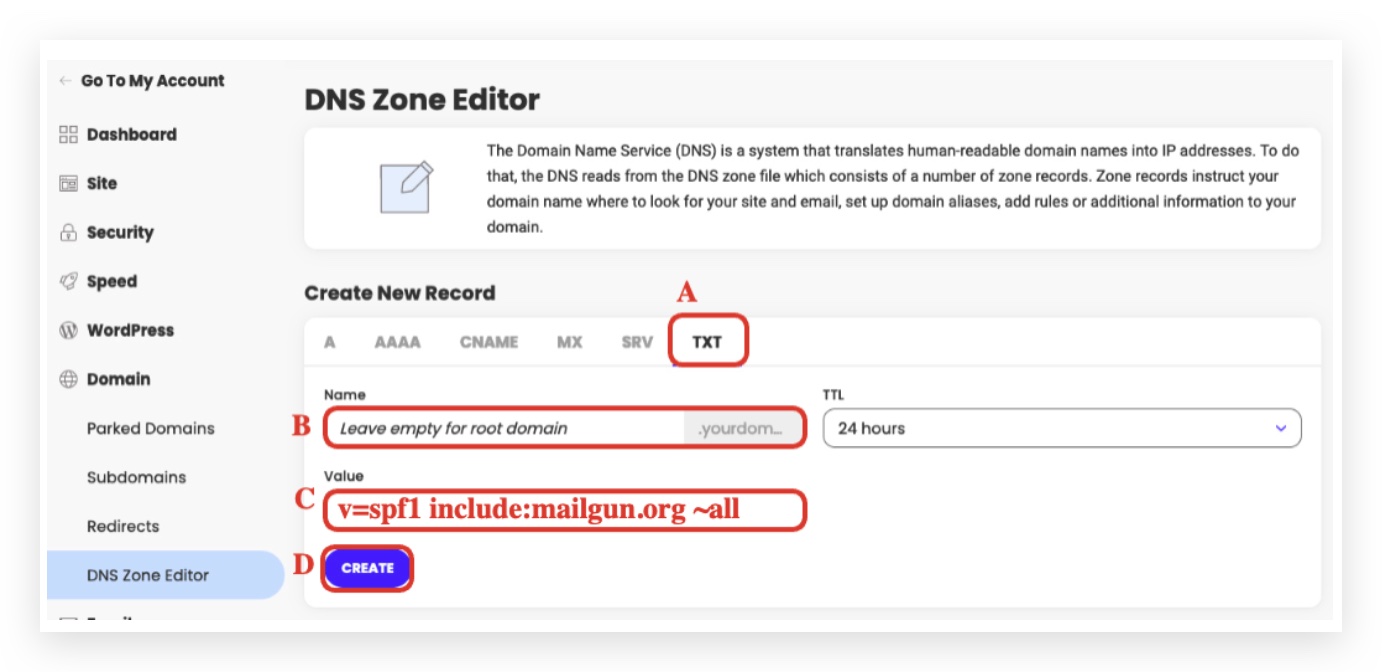
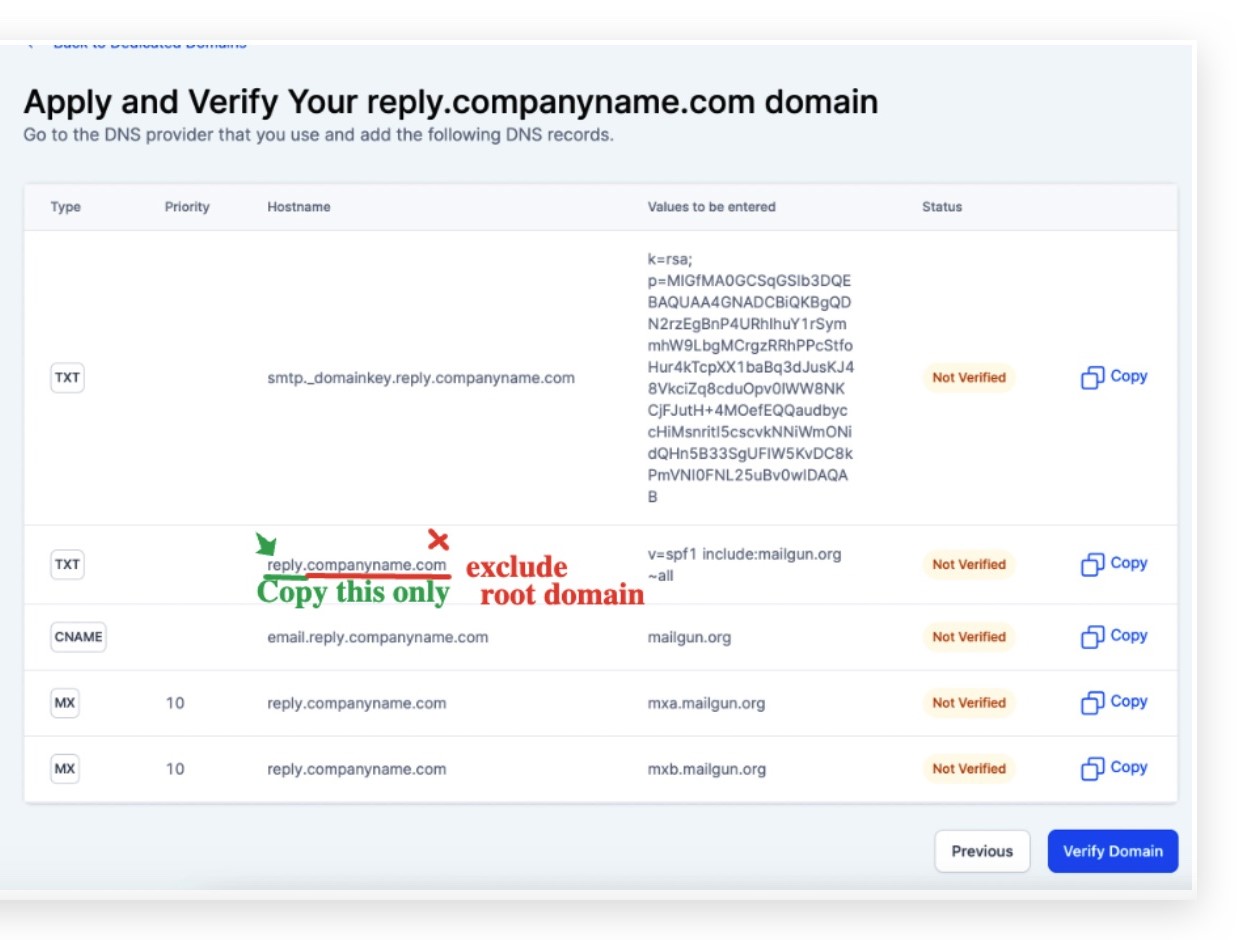
Value (TXT Record):
v=spf1 include:mailgun.org ~allClick Create.
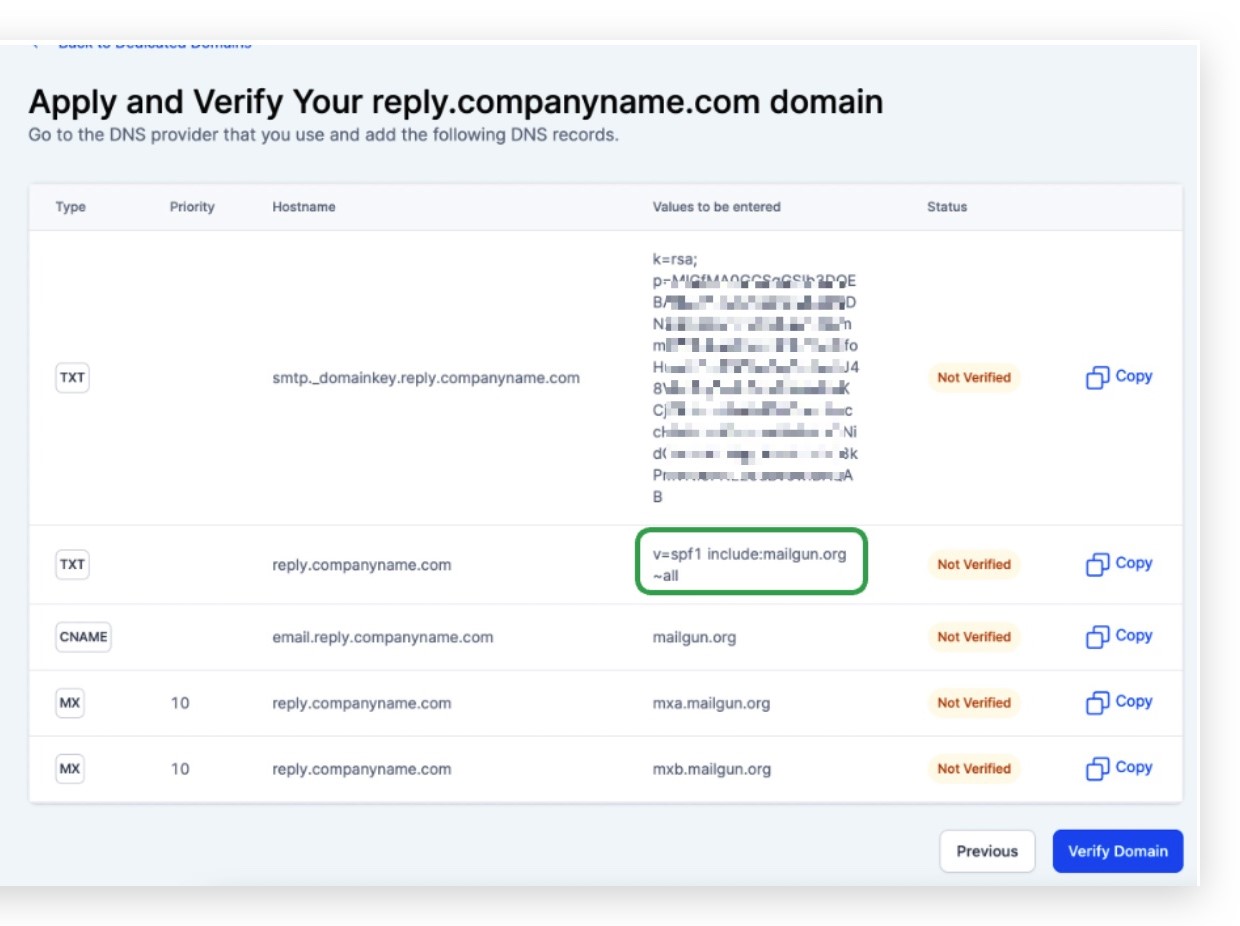
⚠️ This one is unique for every domain. Don’t copy an example—use what your Digital Business Suite gives you!
DNS RECORD 2: TXT (DKIM Record)
Now it’s time to add your second TXT record. This one helps protect your emails from being marked as spam.
Step 1: Go back to your DNS settings (in SiteGround, GoDaddy, etc.), and click + Add Record just like you did before.
Step 2: Make sure you’re adding a TXT record (not CNAME or anything else).
Step 3: Fill in the Name (Host) field
⚠️ This part can be tricky, so follow closely!
Copy the beginning of the TXT record’s hostname provided by your Digital Business Suite.
Only copy the part before the root domain.
(So don’t include your domain name likeyourcompany.com.)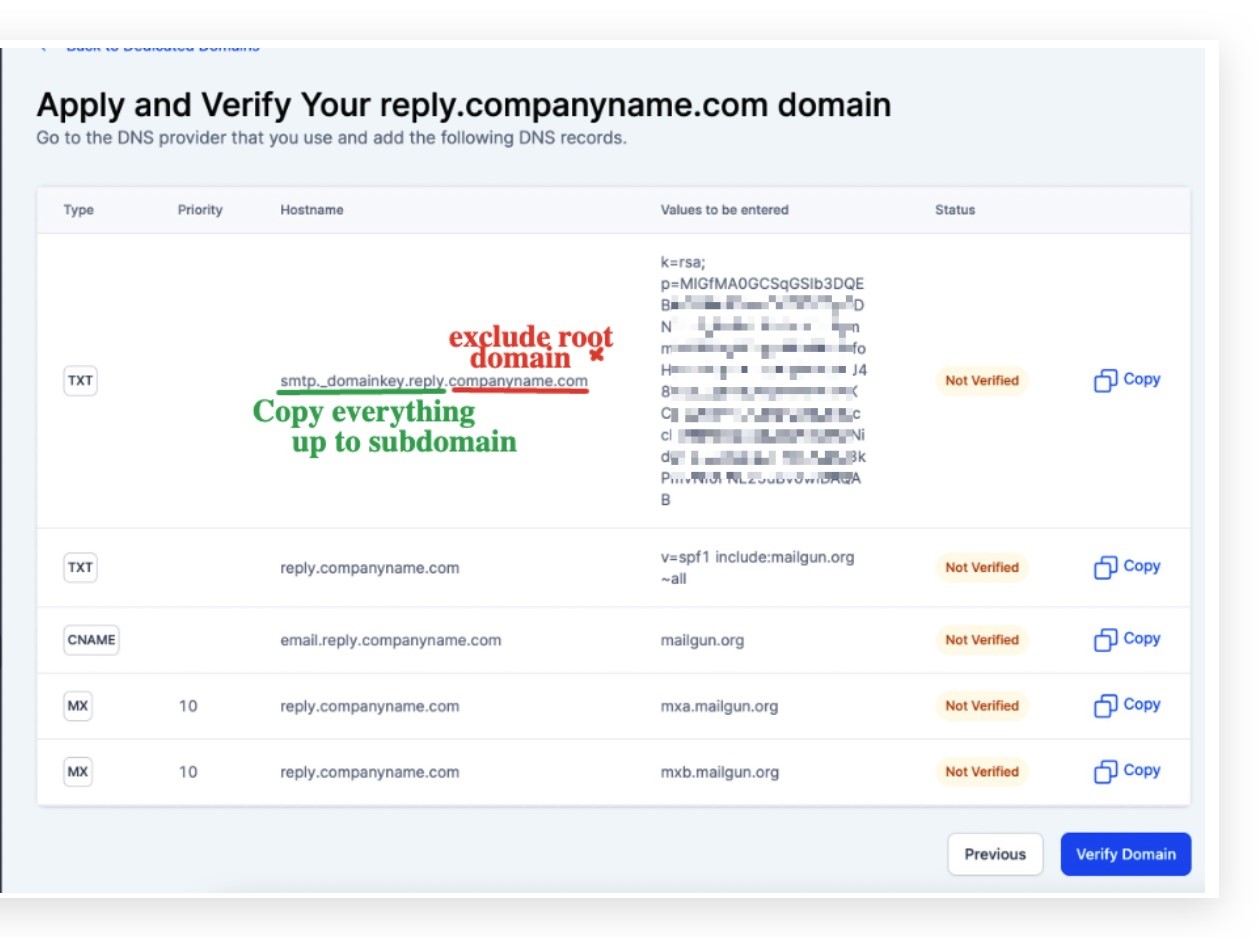
Everyone’s host name is different — make sure to copy exactly what your Digital Business Suite shows.
Step 4: Add the Value (TXT Data)
Go back to your Digital Business Suite.
Copy the 2nd TXT record value provided.
Paste it into the Value field in your DNS.
This is usually a long string of letters, numbers, and symbols.

Click Create or Save. You're done with the 2nd record!
DNS RECORD 3: MX (Mail Exchange - #1)
Click the MX tab.

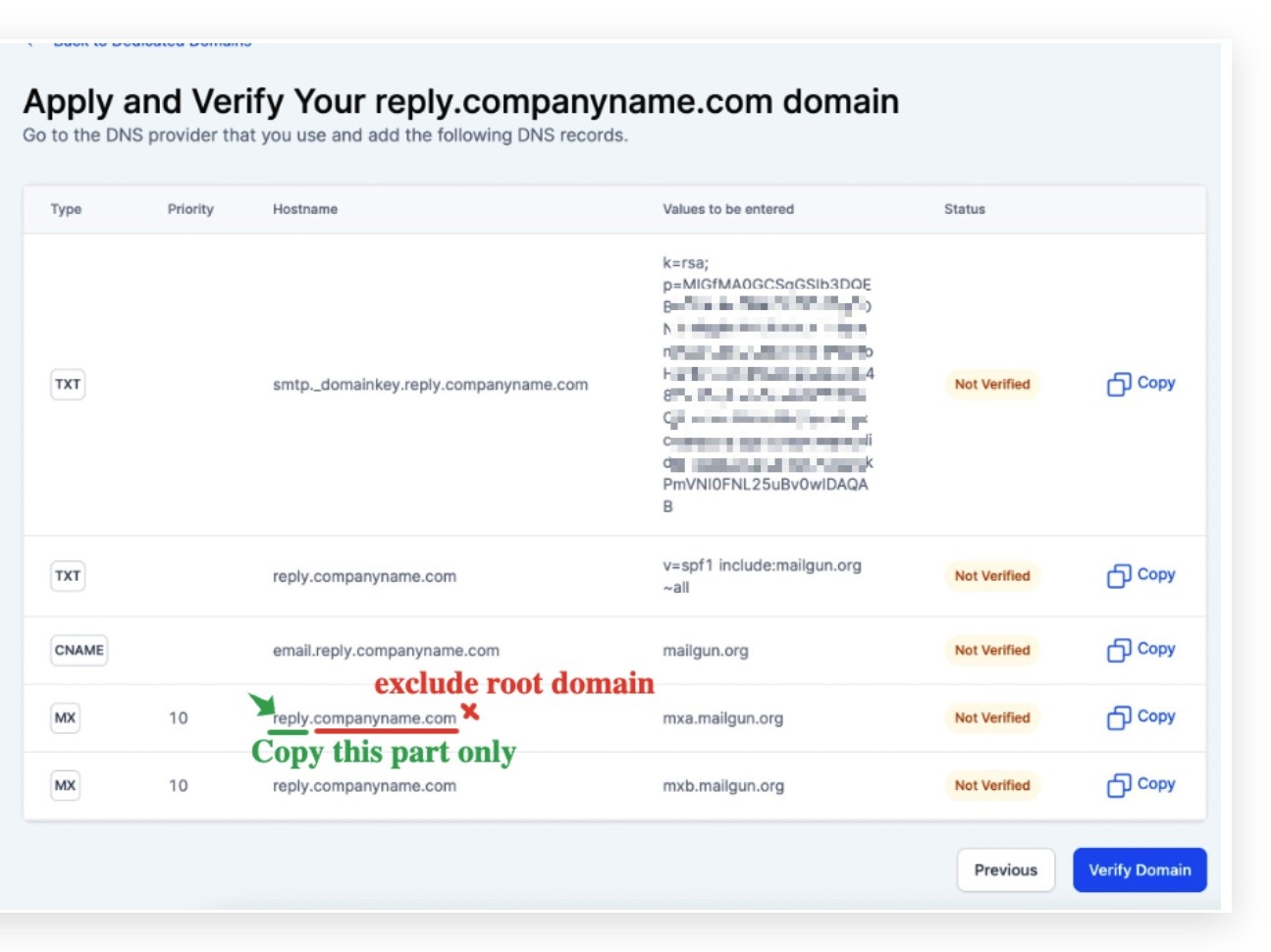
Name: Same as above (
repliesor@)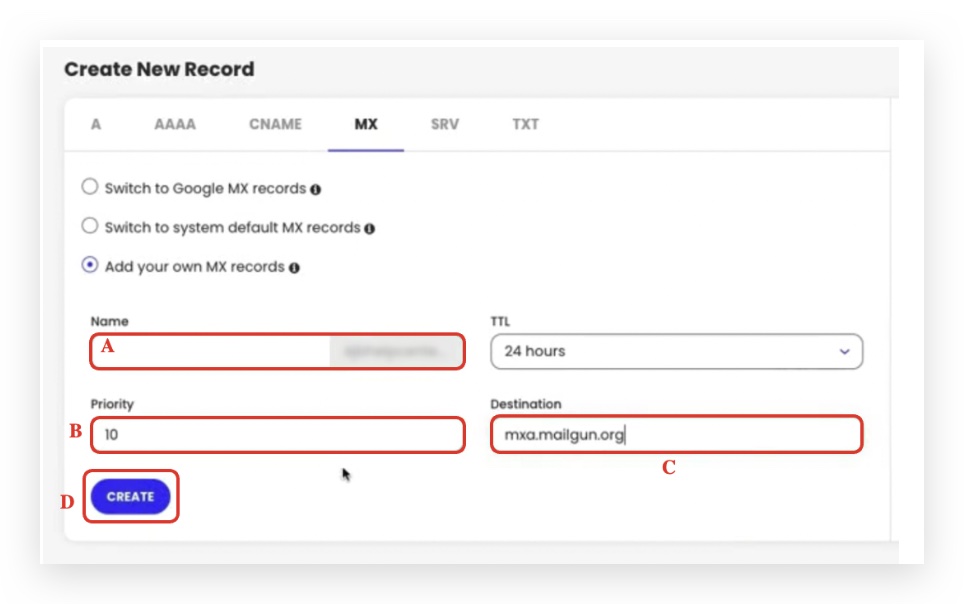
Priority:
10Destination:
mxa.mailgun.orgClick Create.
🔹 DNS RECORD 4: MX (#2)
Repeat the previous step, but:
Destination:
mxb.mailgun.org
🔹 DNS RECORD 5: CNAME
Click the CNAME tab.
Name: Back in Digital Business Suite, find the CNAME host (usually something like
email.replies)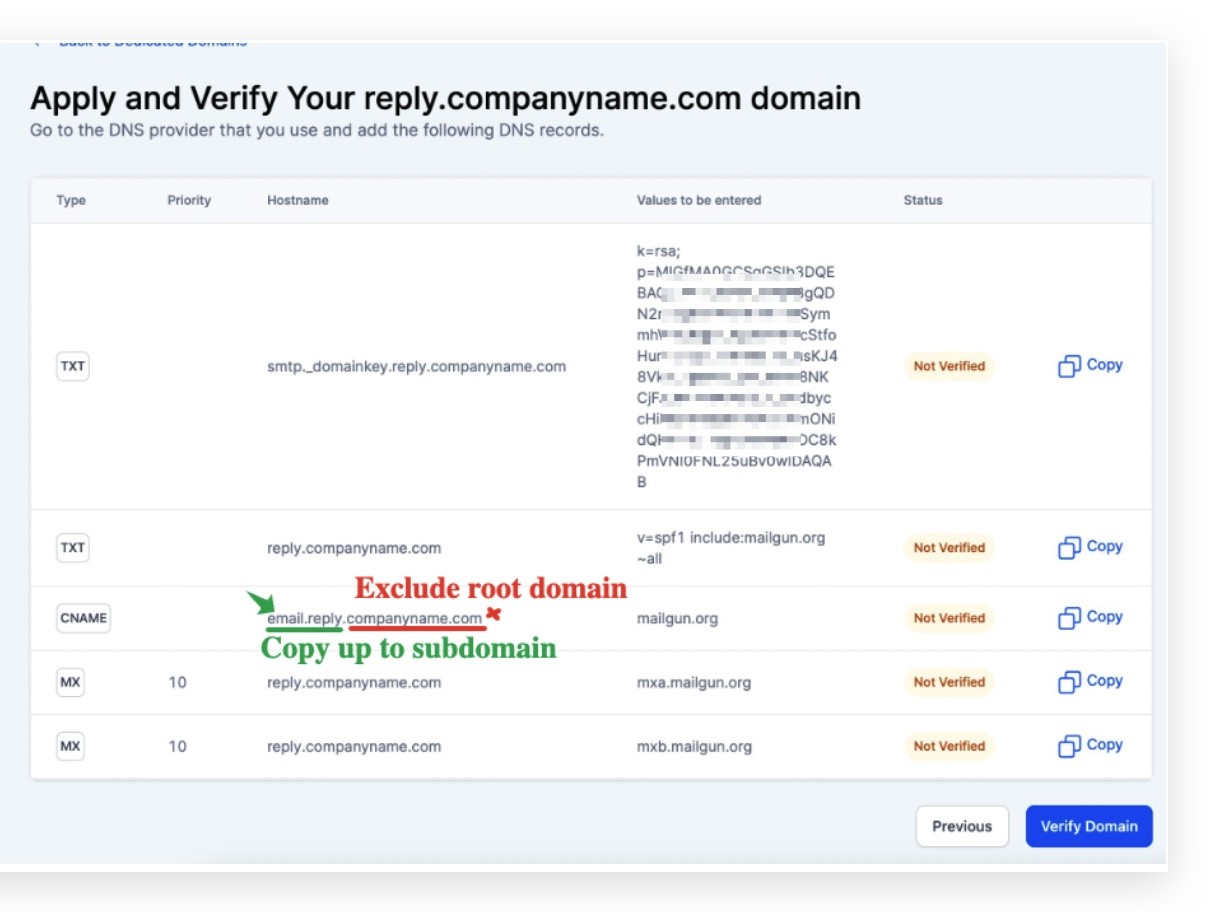
Resolves To:
mailgun.orgClick Create.

Step 3: Go Back and Verify
Return to your Digital Business Suite.
Click "Verify DNS Settings".
If you still see red crosses, give it 10–15 minutes and try again.
Once all records are green ✅, you’re ready!
Extra Step: Add a DMARC Record (Highly Recommended)
This helps email providers trust you even more.
In SiteGround:
Type: TXT
Name:
_dmarcValue:
v=DMARC1; p=none; rua=mailto:[email protected]Click Create
Test Your Email
Send a test email from the Digital Business Suite:
Go to Conversations or a test contact
Send a message using your verified domain
Check your inbox—it should arrive without spam warnings!
Need help setting this up step-by-step? Click here to go through the full onboarding.
Final Checklist
You’re now ready to start emailing from your Digital Business Suite like a professional.
Questions?
If you’re still stuck or your records aren’t verifying, don’t stress! Double-check that:
You used the exact subdomain or root domain name
You copied the values from your Digital Business Suite—not from this blog
You allowed enough time for DNS propagation (up to 24 hours)
Still not working? Our full onboarding package can handle it for you—so you don’t have to worry about the tech stuff.