Business Profile Settings in Digital Business Suite: Everything You Need to Know
Set Up Your Business Profile
Your Business Profile is where you add the core details about your brand that are used throughout your account - kind of like filling out your "about me" for your business. This is where you'll add things like:
Your legal business name
This would be what you registered with the IRS.
Example: Beauty by Sue LLC
Your friendly business name
This is the name you commonly use or go by in your branding.
Example: Sue Jones
Your customer support email or phone number (eventually during onboarding you will get your own phone number in your Digital Business Suite - you can use this number then)
Your website URL (you can use your FermaGlo website here, or your Linktree page that you will eventually connect in your Digital Business Suite)
Your business address (if needed for shipping, receipts, or legal notices)
Even if you operate solely online, completing this section ensures your emails, automations, and text messages remain accurate and professional.
What is the Business Profile?
Your Business Profile is where you add your key business info - like your brand name, website, email, and phone number. This info helps power your emails, automations, and other tools in your account.
Want help setting up your entire Digital Business Suite?
Click here to purchase complete 1:1 onboarding.
Where to Find the Business Profile
Navigating to your Business Profile inside you Digital Business Suite is quick and easy:
Login to your account.
www.fermaglo.com/suiteClick "Settings" from the left-side menu.
You’ll land directly on the Business Profile tab by default.


General Information Setup for Your Account
Setting up your account info correctly helps everything run smoothly. Here's a detailed overview of each field you'll be completing:
Location ID
Your Location ID is a unique code that's automatically generated by the system. You don't need to set it up - but it's good to know where to find it. If you ever contact support, they may ask for your Location ID to help them quickly pull up your account and solve issues faster.
Business Logo
Upload the business logo you want associated with your account. The logo will represent your Company and will also appear in features like invoices, emails, and even in Custom Fields used in messaging. You can create one for free using Canva.
Friendly Business Name
The friendly business name is the label that will be used for your account when leveraging the Custom Field “Account → Name” in automations, messaging, workflows, and throughout other areas inside your Digital Business Suite. We encourage you to use your First Name and Last Name here.
Legal Business Name
Type in your official business name—exactly as it appears on your registration documents (like your LLC). This is important for future identity checks and compliance inside your Digital Business Suite.Business Email
Provide the email address you want associated with your account for communications and Custom Fields like "Account - Email" within messaging, workflows, and emails. Important: Use a professional email address (ex: [email protected]) rather than a personal email for a more polished and trustworthy look.How to Set One Up: If you don't have a professional email yet, you can easily create one through your hosting provider or services like Google Workspace or Namecheap.
Business Phone
Enter the phone number you want connected to this account. This number will automatically appear in your emails, messages, and workflows.Important: You'll need to first set up your business phone number through the system (upcoming lesson). After that, you can update this section.
Business Website
Type in your business website link. This helps automatically fill in your website wherever it's needed-like in messages, automated workflows, and emails.Example: yourname.fermaglo.com
Business Niche
Assign the primary niche for your account by selecting the most relevant option from the dropdown menu. If the business serves multiple industries, choose the niche that best reflects its core target audience. We recommend using Retail.
API Key
Your API key lets you connect your account to other apps and tools—so they can work together automatically. For example, you’ll need this key to set up secure connections (like with Zapier) and share info safely between platforms. It would be self generated key you won't have to set this up for your business suite. This is advanced feature, and is solely option to use.
Update Information Button: After entering your information into this section, click the Update button to update your account settings!NOTE: Our chat support team is available to assist you if you have any questions or issues. Please reach out to them via the left hand menu tab in your Digital Suite called CRM Support.
Business Physical Address
Your Business Physical Address is a critical part of your account’s profile inside your Digital Business Suite.
This information can be used when verifying your business for features that require authentication and compliance. Additionally, the address can be pulled into text messages, social posts, email campaigns, websites, funnels, and more through Custom Fields and Custom Values.
Keeping your Business Physical Address accurate and up-to-date ensures consistency across your marketing assets and helps maintain professional credibility.
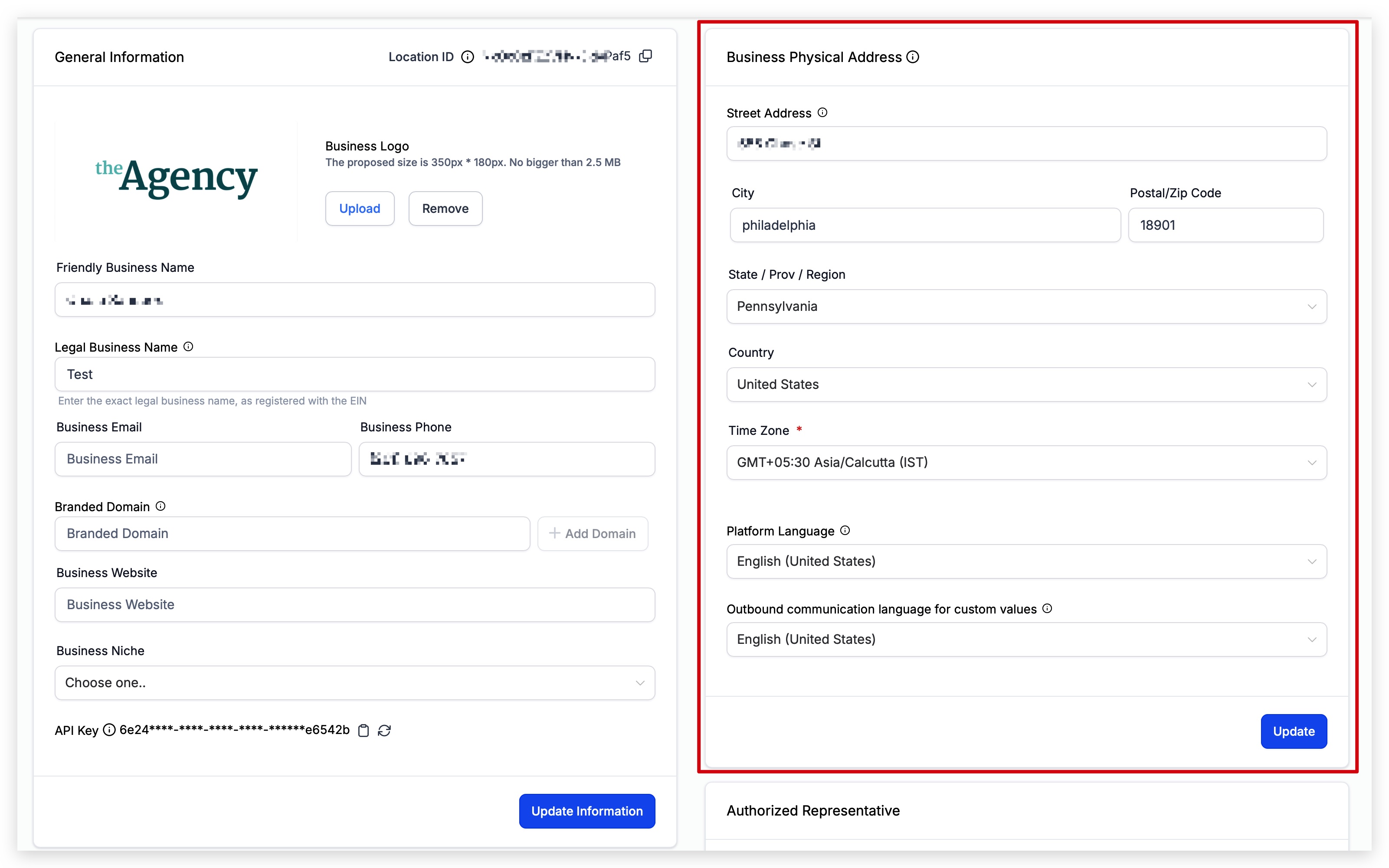
Note: The Business Physical Address should match the address on your EIN listing. This information may be used to verify your business if needed.
Update Information Button: After entering your information into this section, click the Update button to update your account settings!
Time Zone
The Time Zone setting in your account is important for scheduling automated events, like email campaigns, workflows, and appointment reminders. It helps make sure everything happens at the right time.
For example, if you're sending out an email or SMS, you want your contacts to receive it at the right moment - not too early or too late. Ensuring your Time Zone is set correctly helps with this, so you can time messages accordingly.
While some features let you adjust the time zone for specific campaigns, it's still important to check both your Business Profile settings and the individual feature settings to make sure everything is aligned with your desired time zone.

Platform Language
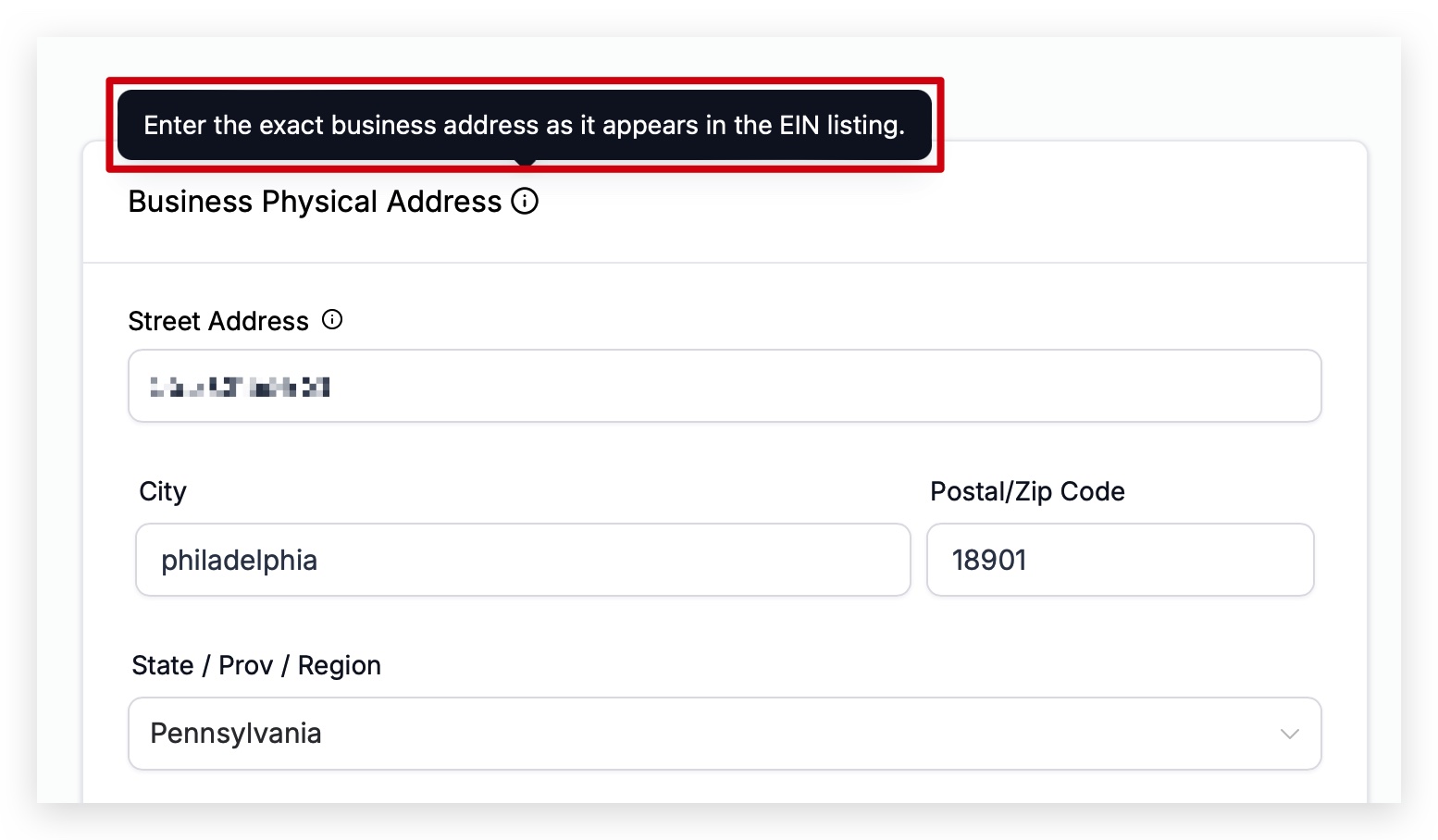
In your account, the Platform Language setting controls what language your account displays in.
For example, if you read and speak English, you'll want to set your account language to English. If you prefer Spanish, you can switch the platform to Spanish, and everything inside your Digital Business Suite will show up in Spanish instead. You can easily change the language at any time if needed.
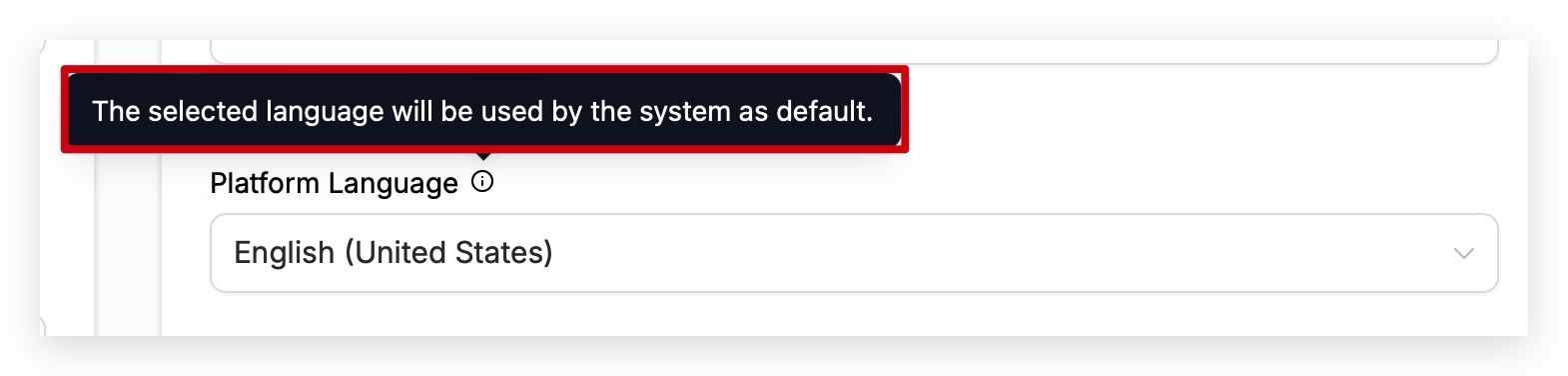
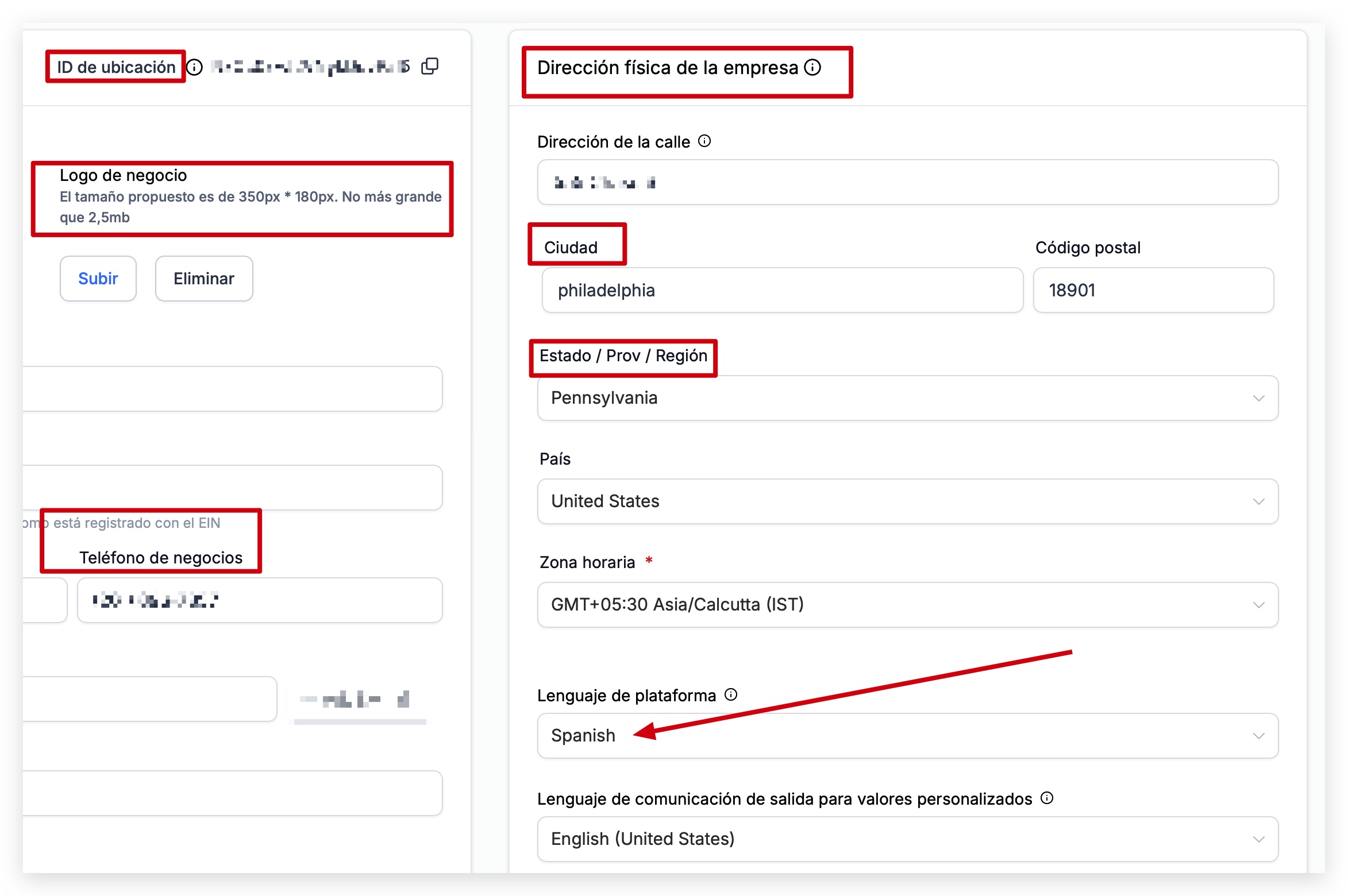
You can see in the example below that we changed the "Platform Language" to Spanish, and all of the text in the application is now showing in Spanish.
Update Information Button: After entering your information into this section, click the Update button to update your account settings!
Communication Language for Custom Fields and Values
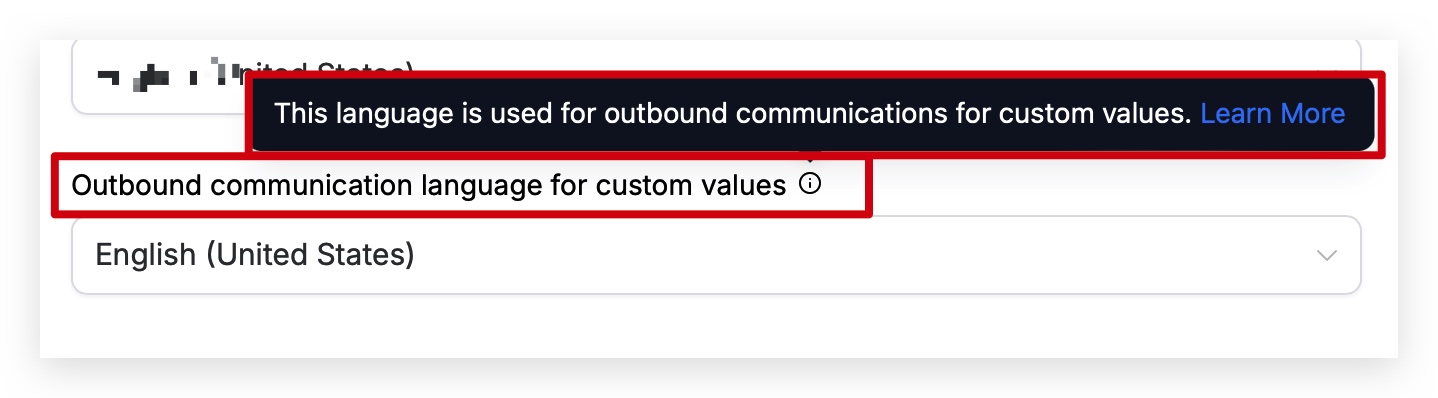
When you send text messages, emails, or use custom fields (like dates and times) in your websites or funnels, your Digital Business Suite needs to know which language to use. Setting the correct communication language ensures that all dates, times, and other dynamic content is displayed accurately and appropriately for your audience.
Supported Languages:
English
Dutch
French
German
Hungarian
Italian
Polish
Portuguese (Brazil)
Portuguese (Portugal)
Spanish
Danish
Custom Fields Affected by Language Settings: When you change the language setting, the following fields will automatically adjust:
Appointment start and end times
Appointment dates
Days of the week
Months
Current time, date, and more
Authorized Representative
Go ahead and enter your own information in this section. This just helps to confirm who is managing the account and ensures everything stays secure and aligned with your business.

Update Information Button: After entering your information into this section, click the Update button to update your account settings!
Business Information
Filling out your Business Information in your account is important.
This section helps verify your business and can affect approvals for things like sending SMS messages.
Here’s what you’ll need to complete:
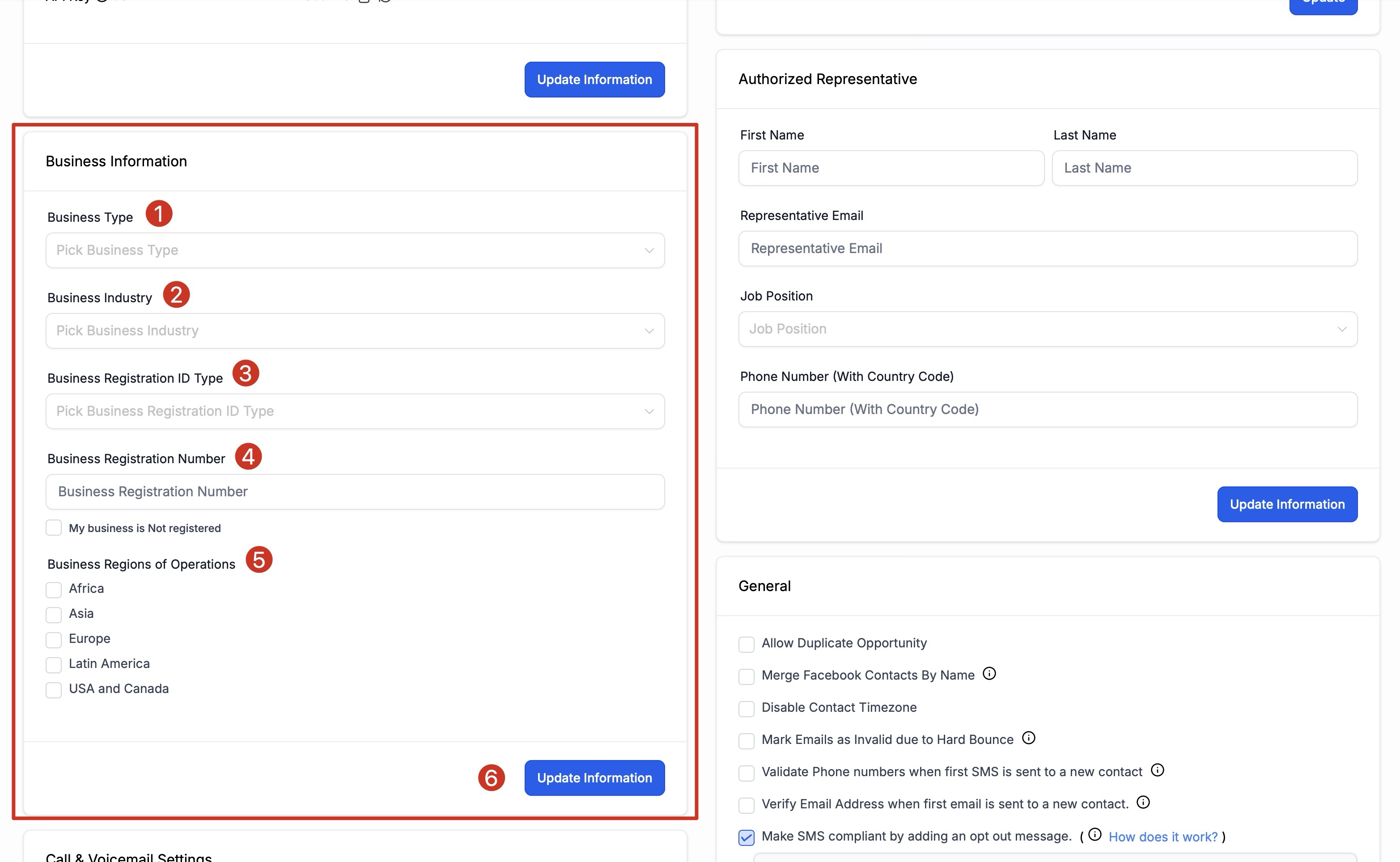
1. Business Type
Since most small beauty and hair‑care businesses operate as an LLC, go ahead and pick LLC (Limited Liability Company) from the Business Type dropdown.
2. Business Industry
When you get to Business Industry, select Retail—this best reflects a product‑based hair‑care or beauty brand selling directly to consumers.
3. Business Registration ID Type
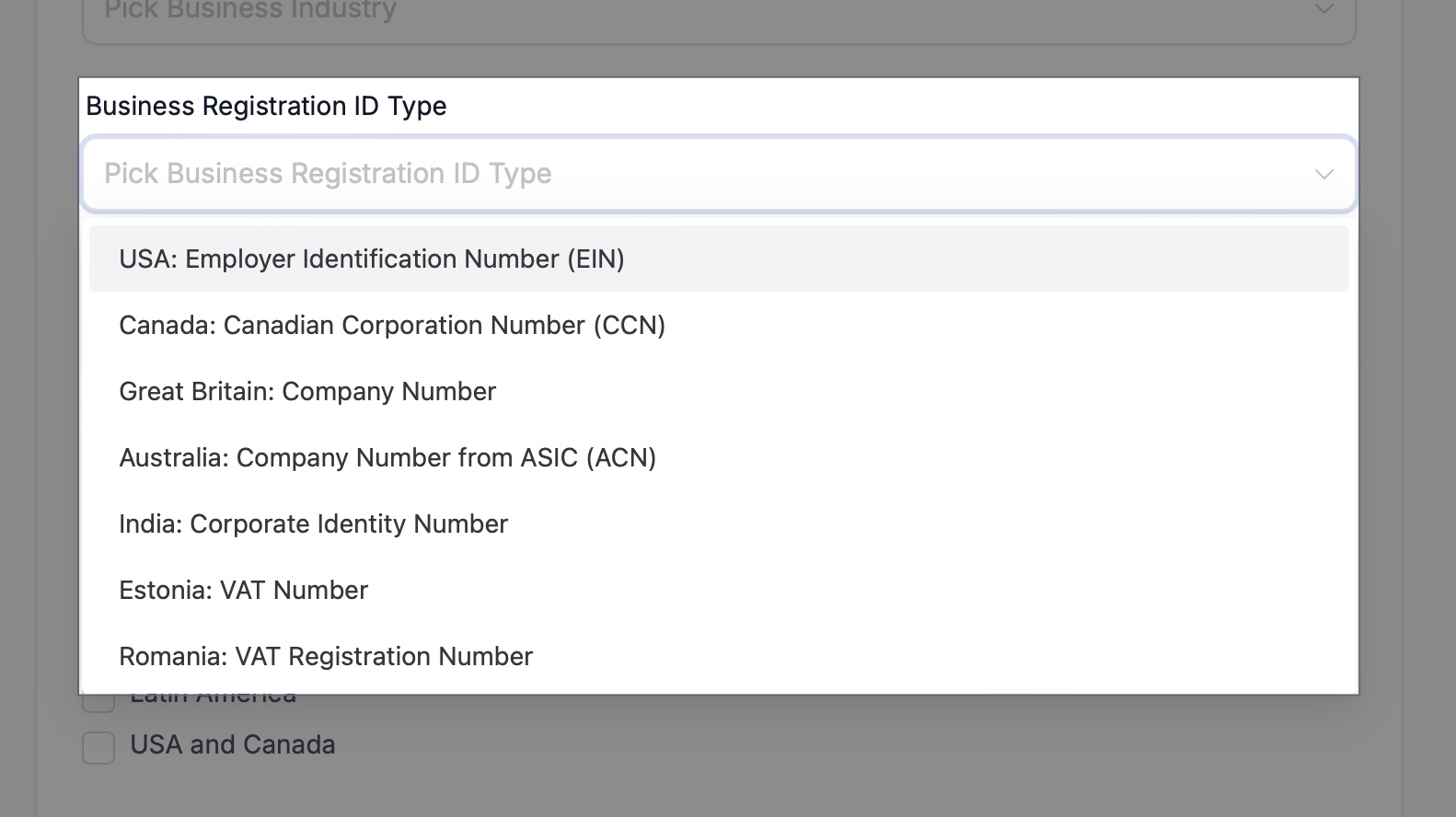
Select the type of registration your business has. (If you're in the U.S., this is usually an EIN.)
4. Business Registration Number
Enter your business registration number based on the type you selected. (This could be your EIN, VAT, CCN, etc.)
5. Business Regions of Operations
Select where your business operates. If you sell globally, pick the regions where you do most of your business. (You can select more than one!)
Update Information Button: After entering your information into this section, click the Update button to update your account settings!
General
This section of your Business Profile is extremely important. Each setting can significantly impact how your account functions — especially regarding contacts, messaging, and compliance. If you experience issues (like unexpected behavior in Contacts), always review these settings first — you might have unintentionally turned something on or off.
If you run into issues, please reach out to our Chat Support team via the CRM Support tab link in your Digital Business Suite.
Let’s break down each setting clearly:
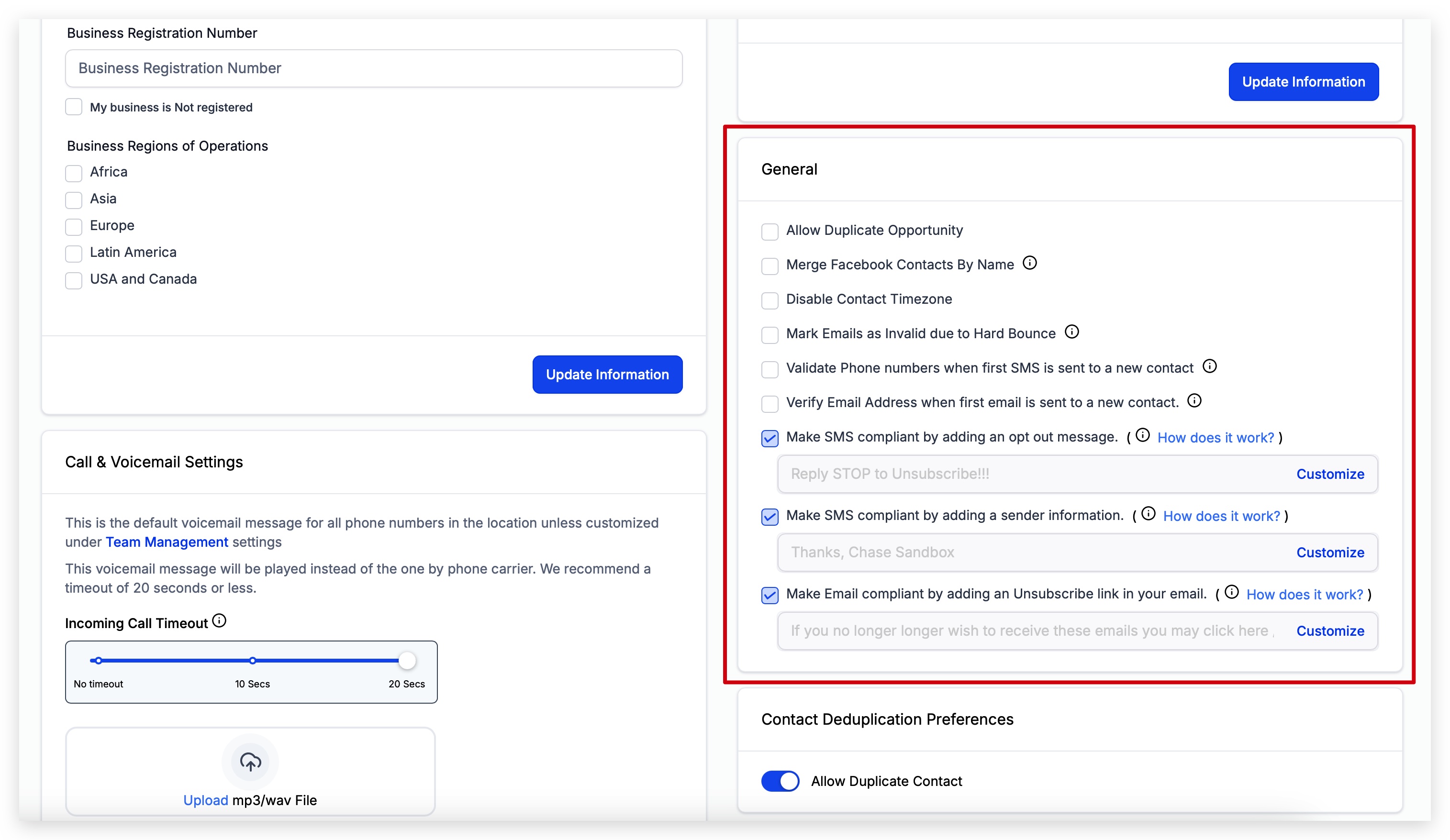
1. Allow Duplicate Opportunities
What it means:
Turning this ON lets you track the same individual more than once in the same sales pipeline.Why it’s helpful (shampoo business example):
Let’s say Sarah bought your hydrating shampoo last month. Now she’s interested in trying your volumizing set. With this setting ON, you can create a new sales card for Sarah—without replacing the one from her first purchase.Note: this process is not set up in your Digital Suite, it is just solely for example purposes.
In plain terms:
It’s like having one card for each product she’s interested in, so you can keep track of every order or conversation separately—even if it’s the same indvidual.
2. Merge Facebook Contacts by Name
By default: When someone sends a message to your Business Facebook Page through Messenger, a new contact is created in your system.
Note: This only applies to your Facebook Business Page, not your personal Facebook profile. Since Facebook only shares the user’s name (not their phone number or email), a new contact is created using just their name.
Turn ON: If you want your account to merge contacts with the same name instead of creating duplicates — helping keep your contact list clean and organized. We recommend having this on!
3. Disable Contact Time zone
Normally, messages are scheduled based on the contact’s local time zone (important for ensuring communications arrive at appropriate times).
If you turn this ON: Your account will ignore the contact's time zone and send based on the account's time zone only.
Use carefully, as it could lead to poor message timing.
4. Mark Emails as Unverified Due to Hard Bounce
When this is ON, any email that permanently fails to send (called a hard bounce) will be marked as unverified. It stops you/your account from sending to bad email addresses—saving money and keeping your email list cleaner.
Note: Workflows will automatically skip unverified emails.
Hard bounce = Email can’t be delivered (because it’s fake, has a typo, or the domain doesn’t exist).
5. Validate Phone Numbers on First SMS Attempt
If ON: Your account will automatically validate a phone number the first time you attempt to send an SMS.
If the number is invalid, the SMS will not send, and you’ll need to validate or correct the contact's number.
Please note there is a cost to do this. It is $0.005 per validation attempt (deducted from your account credits).
6. Verify Email Address on First Email Attempt
If ON: Your account will attempt to verify an email address when you send the first email to a new contact.
If the email is unverified, it will not send until verified.
Please note there is a cost to do this. It is $0.0025 per validation attempt (deducted from your account credits).
7. Make SMS Compliant: Add Opt-Out Message
Your Digital Business Suite Default: Adds an opt-out message "Reply STOP to unsubscribe" to every SMS automatically (only on the first message sent to a contact).
Highly recommended for legal compliance — you can technically turn it off, but it’s strongly discouraged.
8. Make SMS Compliant: Add Sender Information
Your Digital Business Suite Default: Automatically adds sender information (your business name) to outgoing SMS messages.
Helps recipients recognize you and protects you legally.
Can be turned off, but not recommended.
9. Make Email Compliant: Add Unsubscribe Link
Your account automatically includes an unsubscribe link in all marketing emails. This is required by law to protect recipients' rights.
Best practice is to leave this setting ON to stay compliant and avoid penalties.
These settings help protect your business, keep your contact list clean, and ensure your communications stay legally compliant. Always review carefully before adjusting anything!
Call & Voicemail Settings
These voicemail settings apply to your entire account and will only be overridden if you assign a custom voicemail to an individual team member (ex: you add a Virtual Assistant to your Digital Suite account and they need their own voicemail).
Uploading Your Account Voicemail
Your voicemail file must be in MP3 or WAV format.
Make sure the audio is clear, professional, and welcoming to best represent your brand.
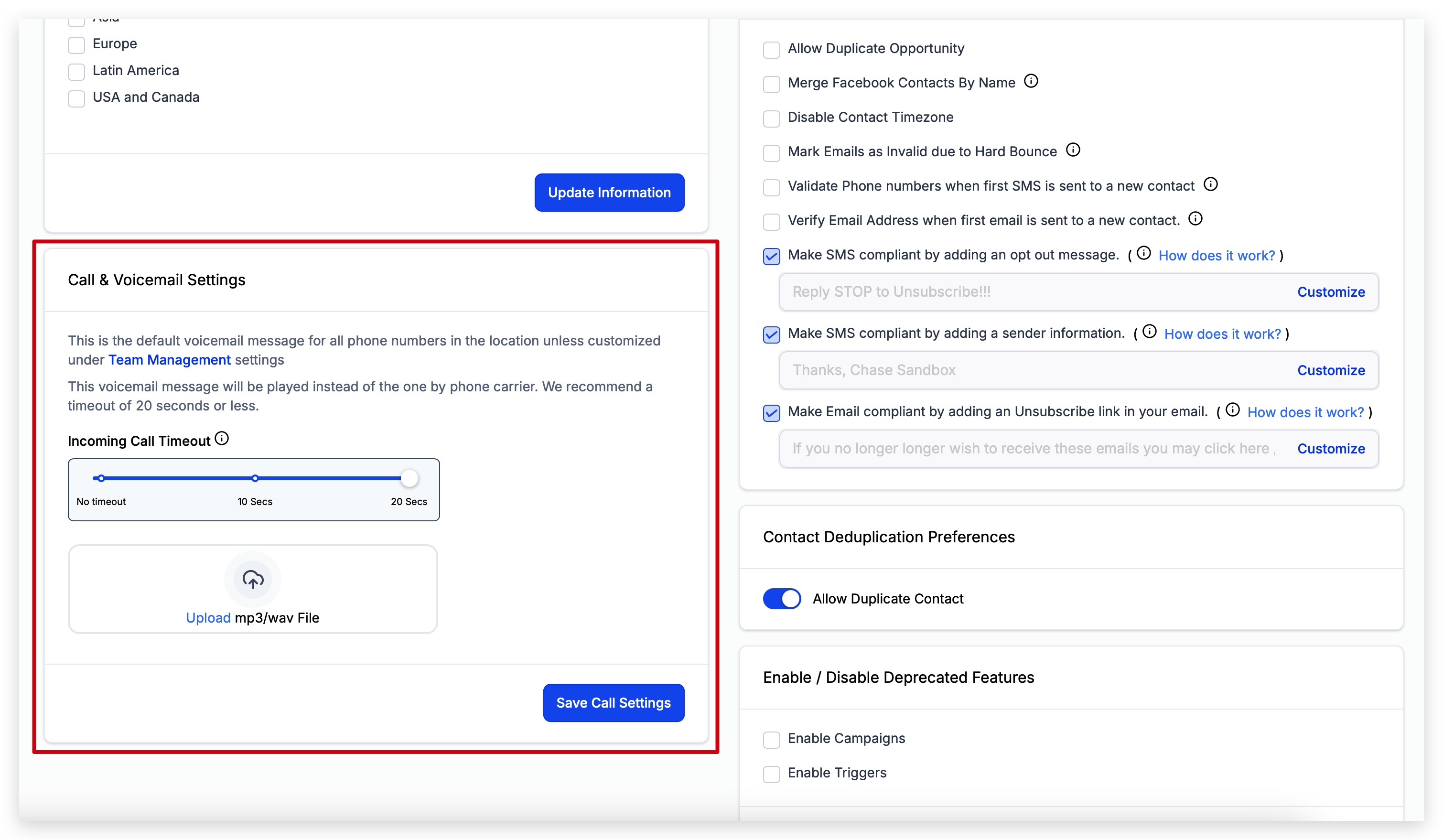
Note: make sure to click Save Call Settings once you complete this section.
Incoming Call Timeout
Incoming Call Timeout controls how long a call rings before being sent to voicemail. We recommend setting it to between 10–20 seconds.
However, depending on your business needs, you may want a shorter timeout (under 10 seconds) to ensure calls quickly reach voicemail — especially to capture leads before they hang up.
Contact Duplication Preferences
This setting manages duplicate contacts.
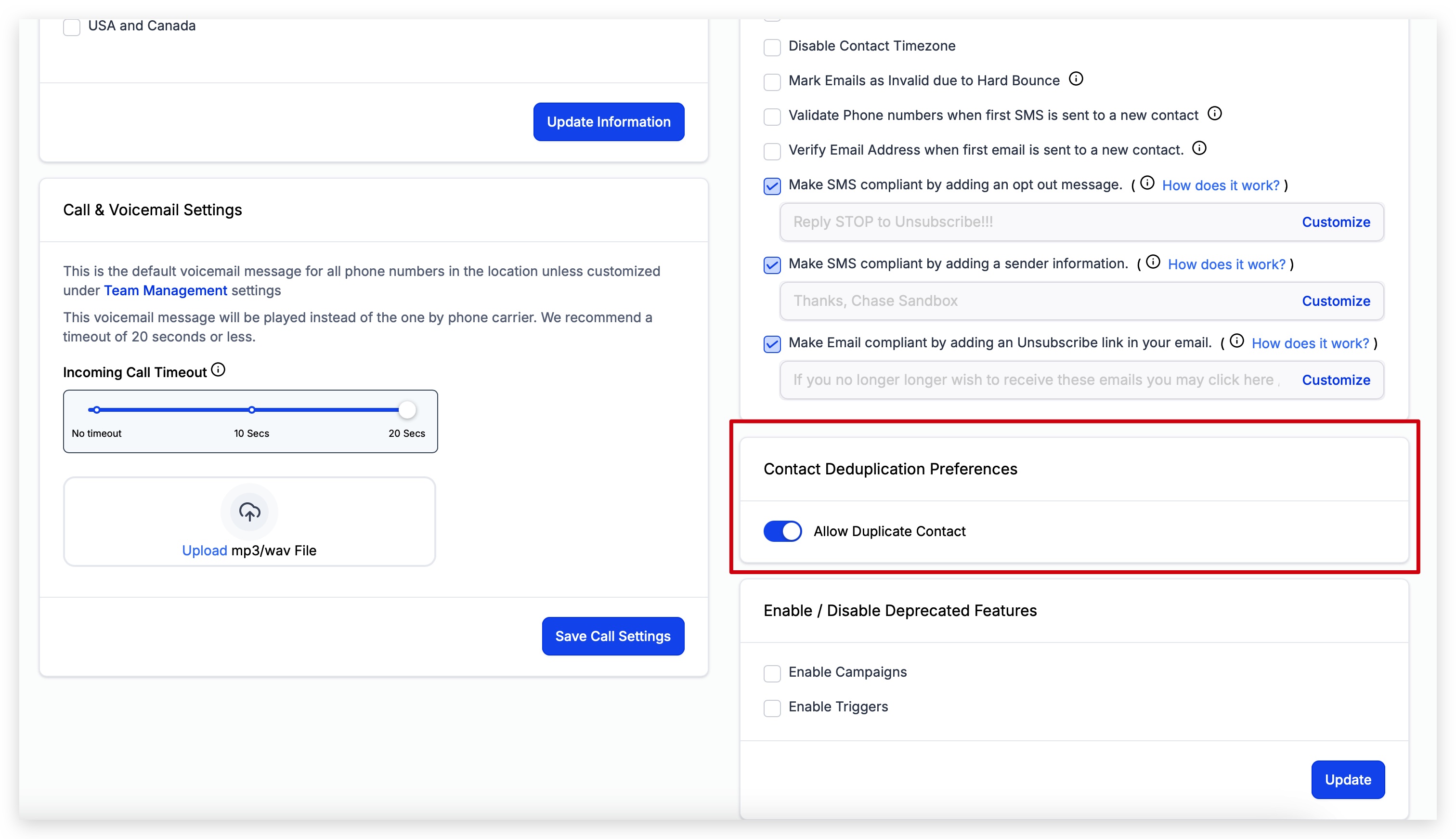
To allow duplicate contacts, toggle this setting ON.
If you do not want duplicate contacts, toggle this setting OFF.
When you turn this setting OFF, you'll be presented with options to customize how you identify duplicates.
You can choose whether EMAIL or PHONE number should be checked first, and if needed, select a secondary field for even tighter duplicate control.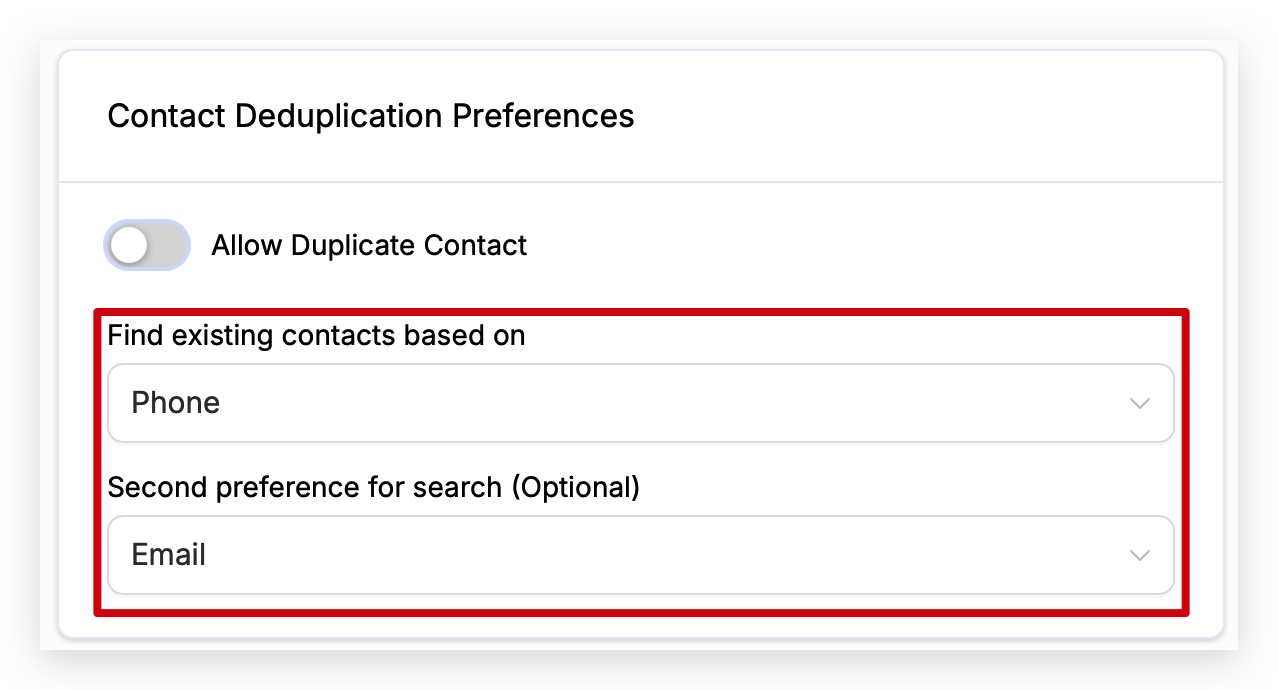
Need help setting your account up? Click here to go through the full onboarding.
Enable/Disable Deprecated (old) Features
Your Digital Business Suite is always improving with new tools and updates to help your business run more smoothly.
Some older tools—like Campaigns and Triggers—have been replaced by more powerful features called Workflows.
You can still turn on these older tools if you really need them, but keep in mind:
They may not work perfectly.
Any issues won’t be fixed or updated.
They’ll eventually be removed completely as the system continues to grow and improve.
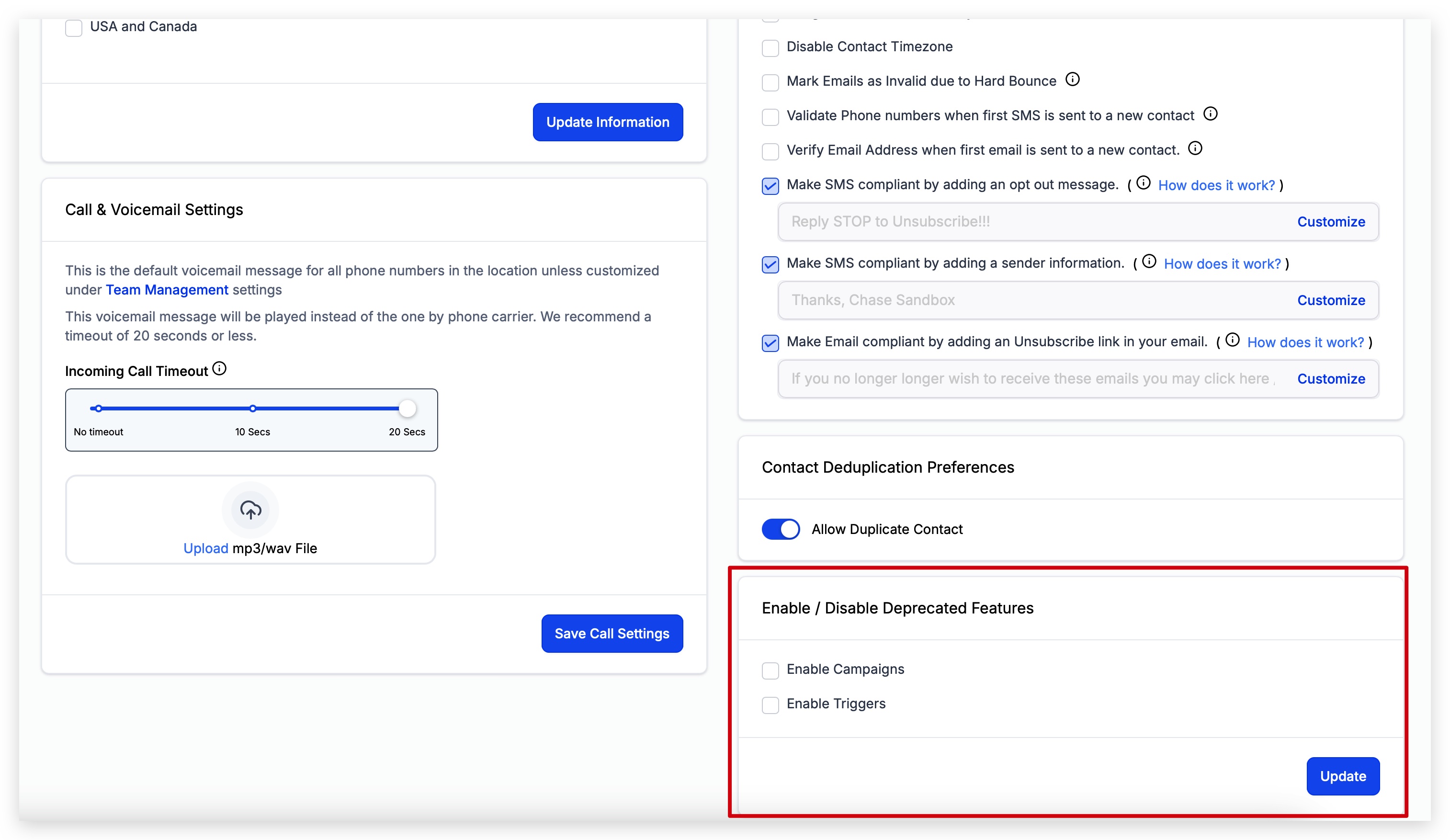
Recommendation: Stick with Workflows for a smoother, more reliable experience.
Missed Call Text Back
Missed Call Text Back is a powerful feature for your business — and it’s easy to set up directly! When activated, this feature automatically sends an SMS to anyone who calls your number but doesn’t get an answer from your team (call was not answered).
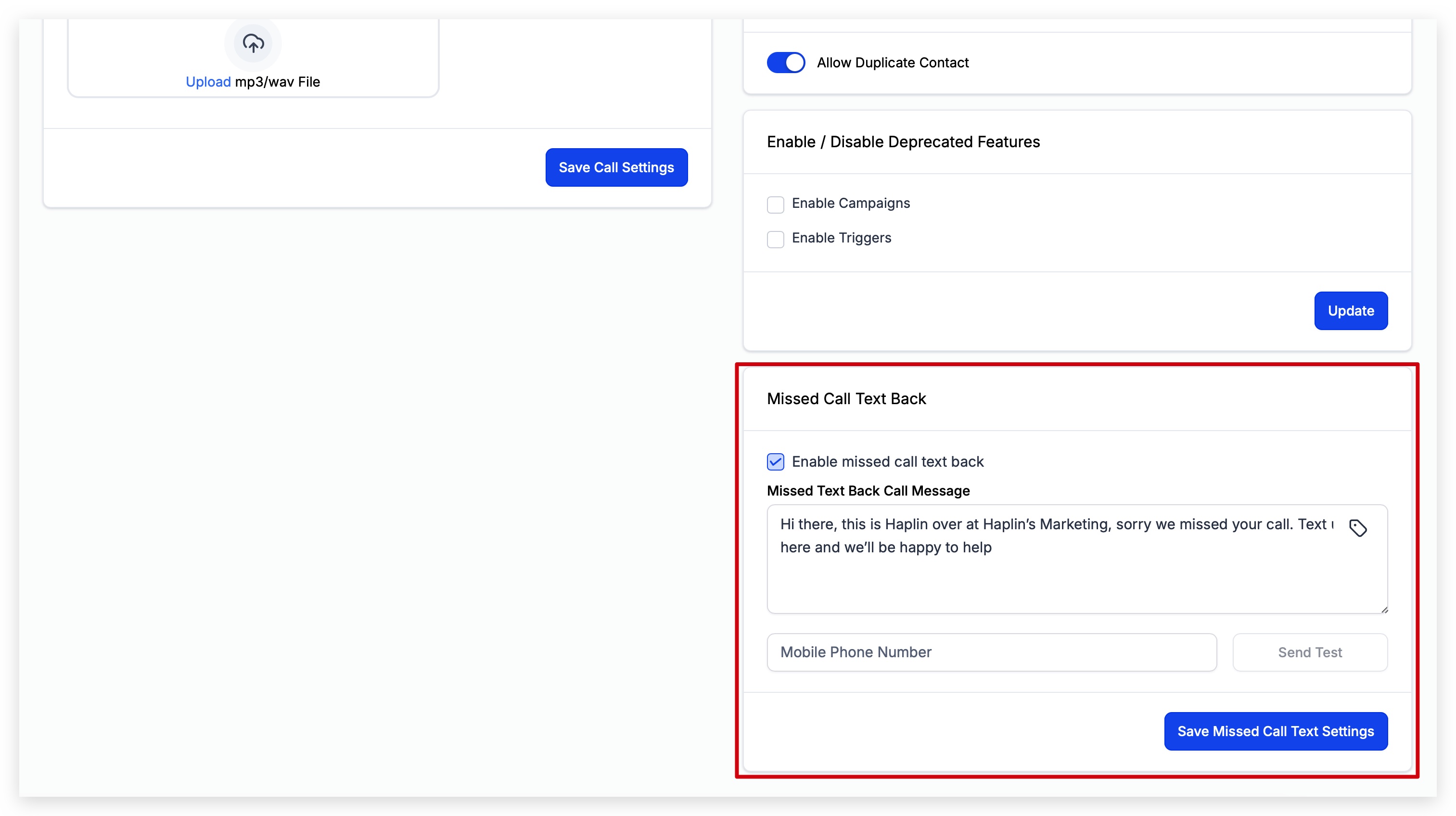
You can:
Customize the exact SMS message sent.
Use Custom Fields and Custom Values for personalization.
Test your message before launching by entering your phone number and clicking Send Test.
Once you’re happy with your SMS reply, simply click Save, and your Missed Call Text Back will be live (not functioning until you complete the A2P step in your setup - future lesson).
Pro Tip: Using Missed Call Text Back improves your response rates and customer experience, even when your team can't pick up the phone.
Need help setting up your account? Click here to go through the full onboarding.