
How to Use Workflows & Automations In Your Digital Business Suite
Automation doesn’t just save time—it multiplies your ability to serve, sell, and scale.
If you're tired of repeating the same manual tasks, it's time to tap into the power of workflow automation inside your Digital Business Suite.
Whether you want to:
Follow up with leads instantly
Book appointments without the back-and-forth
Organize and respond to inquiries more efficiently
…this guide will help you build smart automations with confidence—no tech background needed.
If Need help setting this up step-by-step? Click here to go through the onboarding!
What Is Workflow Automation?
Workflow automation in your Digital Business Suite lets you set up actions that happen automatically when something specific occurs. This saves you time by handling repetitive tasks for you-quickly and without mistakes.
Example:
When someone fills out your hair quiz, a workflow can instantly:
Add their contact info to your Digital Business Suite
Send a personalized thank-you text or email
Tag them based on their hair type or concerns
Trigger a follow-up email with tailored product suggestions or tips
And the best part? It all happens automatically!
Key Benefits of Using Workflows in your Digital Business Suite
More Time for Growth: Automate tasks so you can focus on expanding.
No Mistakes: Processes run consistently without errors.
Save money: Less manual work means lower costs.
Happier Customers: Quick, automatic responses keep customers satisfied.
Easy Growth: Manage more leads without extra help.
Real-Life Ways to Use Your FermaGlo Workflows
Lead Follow-Up: When someone fills out your hair quiz, their information is automatically saved and tagged in your Digital Business Suite. They’ll receive a personalized email letting them know you're reviewing their answers and putting together customized recommendations.
Example: A potential client completes your quiz and instantly receives an email saying you're working on their tailored hair care suggestions and outlining the next steps.Booking Reminders: Automatically confirm appointments, send reminders, and follow up after.
Example: A new brand partner enrolls and books their onboarding call—then gets a text reminder 1 day before the call to ensure they’re prepared.Marketing Follow‑Ups: Send targeted emails or texts based on your hair consultation form.
Example: If someone selects “scalp issues” in your hair quiz, they automatically receive a follow-up email with your best-selling scalp care tips and product recommendations
What Are Triggers and Actions?
Think of triggers and actions like cause and effect — they help your Digital Business Suite know what to do and when to do it automatically.
Triggers = The Starting Point
A trigger is what starts an automation. It’s like saying, “When this happens…”
Examples:
Someone fills out a form
A new appointment gets booked
A customer replies to your message
Actions = What Happens Next
An action is what your Digital Business Suite does after the trigger. It’s like saying, “…then do this.”
Examples:
Send an email or text
Add a note or tag to the customer
Assign that person to a team member
Move them to the next step in your sales process
You can even stack multiple actions together to save more time and keep everything running smoothly — without lifting a finger.
Think of it like this:
If THIS happens → Then DO that.
It’s how your Digital Business Suite helps you work smarter, stay organized, and follow up without missing a beat.
How to Set Up a Workflow
Step 1: Navigate to Workflows
In your account dashboard, go to:
Automation → Workflows

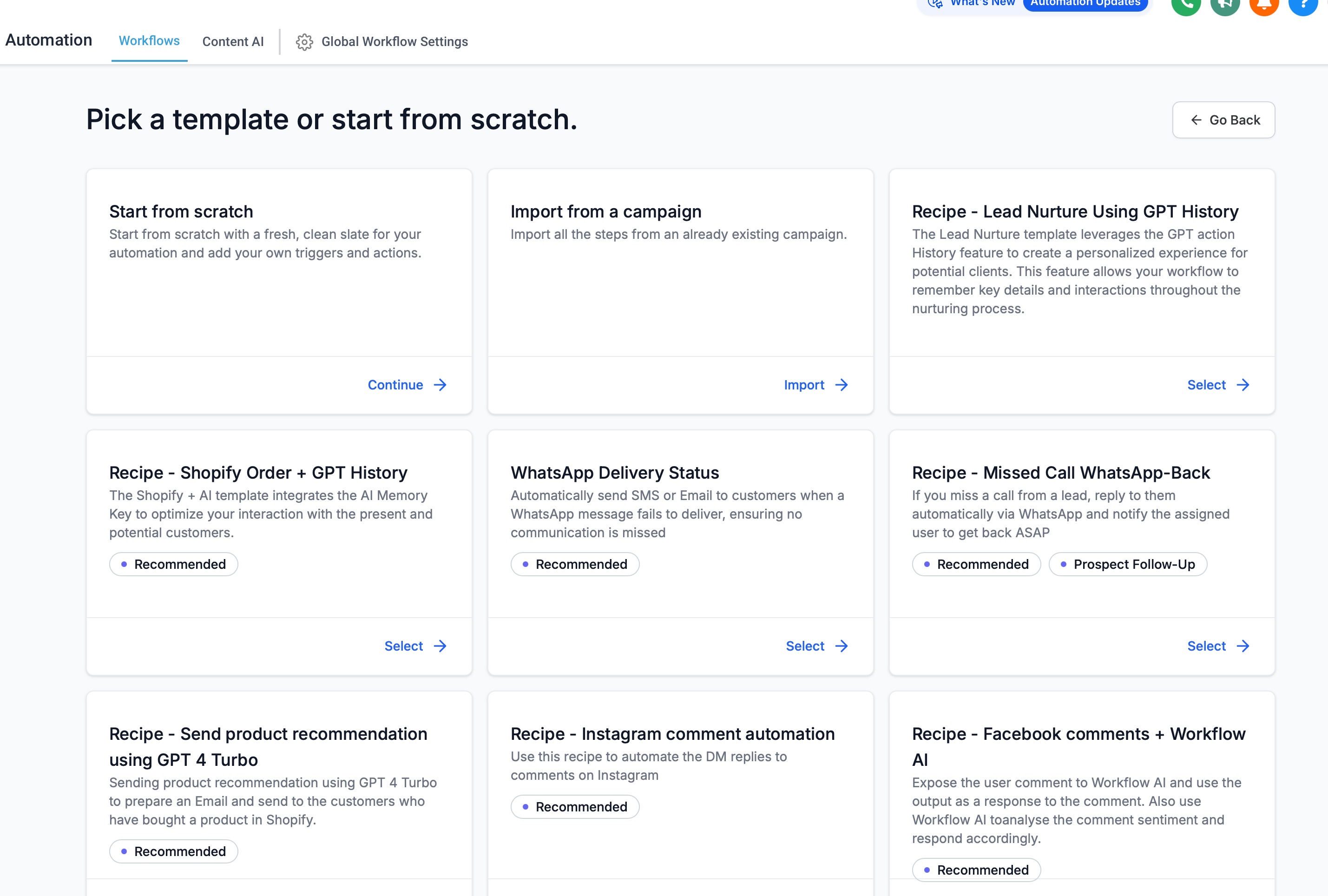
Step 2: Click “+ Create Workflow”
You’ll see two options:
Start from Scratch: Build your own step-by-step.
Use a Recipe or Template: Choose from pre-built automations tailored for common tasks.


Step 3: Pick a Template (or Make Your Own)
Your Digital Business Suite comes with ready-to-use templates to help you get started quickly.
Here are a few popular ones:
Lead Follow-Up: Example: Someone fills out your hair consultation → they automatically get a “Thanks for reaching out!” email.
Birthday Texts: Example: Surprise your clients and team members with a “Happy Birthday!” text.
Client Onboarding: Automate your client onboarding for product success.
Example: After someone buys your FermaGlo Serum, they get a quick‑start email, a follow‑up text with a usage tip, and a link to a how‑to video.
You can use one of these or mix and match to fit your business goals.
Step 4: Choose What Starts the Automation (Add a Trigger)
A trigger is what tells your system when to begin a task — kind of like pressing a “start” button. Imagine saying: "When this happens… start the process."
Simple examples of triggers:
Someone fills out a form: Like your contact or booking form on your website.
You add a tag to someone: Like marking a lead as “Follow Up” or “Interested.”
Someone opens an email: Perfect for sending a follow-up after someone reads your message.
Setting the right trigger means your system will know exactly when to get to work — automatically.
In the video below, you’ll see how easy it is to find the trigger you need. You can scroll through the list or use the search bar to quickly locate what you're looking for.
Whether it's a form submission, a tag being added, an email being opened, or any other event — just type in a keyword, and matching triggers will appear instantly. It's a fast, intuitive way to set your workflow in motion.

Step 5: Tell the Workflow What to Do (Add Actions)
Now that you've set the trigger (what starts the automation), it's time to tell your system what happens next — these are called actions. Think of it like this: "When this happens — then do this."
Here are a few action examples you can add:
Send a Confirmation Text: Example: “Thanks for Filling out my hair consultation! I will review it and get back to you with product recommendations”
Add the Lead to a Pipeline: Example: Move a new contact into your “Interested in Products” or “New Lead” stage so you can easily track progress.
You can add just one action — or stack multiple actions together to create a smart, time-saving system that runs on autopilot.
In the video below, you’ll see how to add an action step to your workflow. Just like with triggers, you can scroll through the list or use the search bar to find exactly what you need.

Step 6: Save & Test Before You Go Live
Click “Save” and then use the “Test Workflow” button to make sure everything’s running as expected.

Final Tip
Workflows are the secret sauce to running a lean, scalable, client-centered business. Once you’ve built your first few automations inside Your Digital Business Suite, you’ll wonder how you ever managed without them.
Need help setting this up step-by-step? Click here to go through the onboarding.